The hardware that works with it.
Card payments run on Stripe Terminal smart readers, which connect over Wi-Fi or Ethernet and talk to Stripe directly. Add a receipt printer, cash drawer and barcode scanner if you need them.
Card readers
The register works with Stripe’s smart readers, the kind that sit on the counter with their own screen. It’s tested with Stripe’s smart readers, and today it works only with Stripe. Support for more payment providers will come later.
Stripe readers
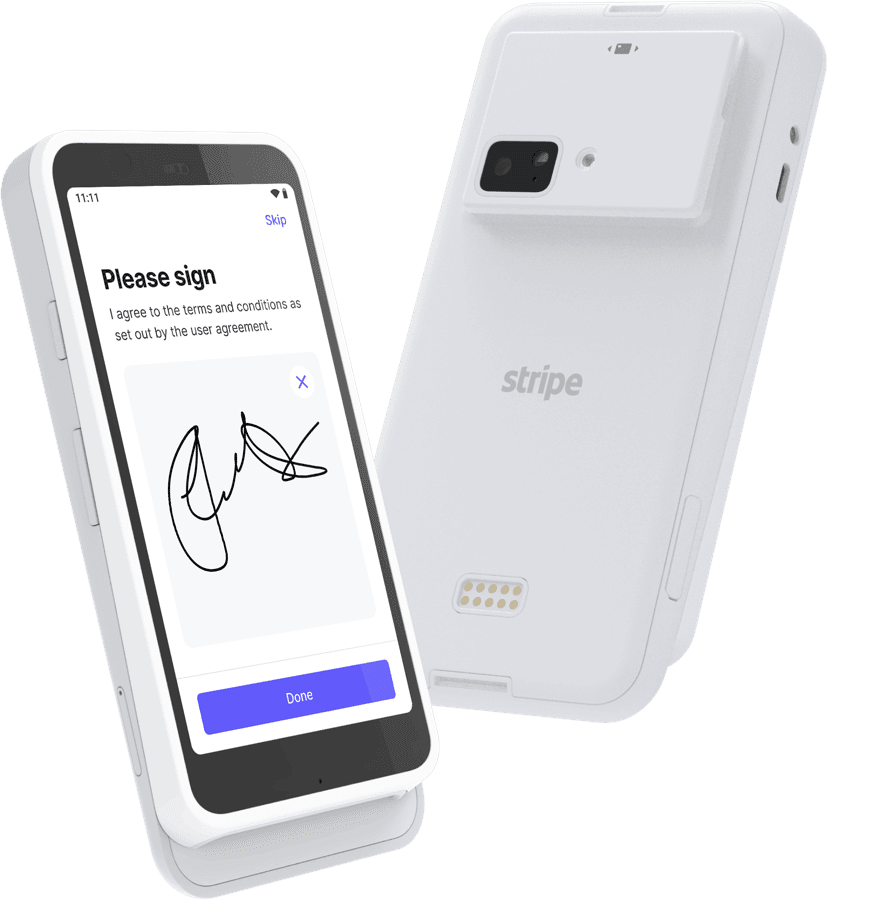
Stripe Reader S700
Our recommended reader for most counters.
- Type
- Countertop or handheld, with a battery
- Screen
- 5.5-inch touchscreen
- Connects by
- Wi-Fi, or Ethernet with the optional hub
- Shows the sale
- Yes, items and total on the reader
Stripe Reader S710
The S700 with a cellular connection.
- Type
- Countertop or handheld, with a battery
- Screen
- 5.5-inch touchscreen
- Connects by
- Wi-Fi, 4G cellular, or Ethernet with the optional hub
- Shows the sale
- Yes, items and total on the reader
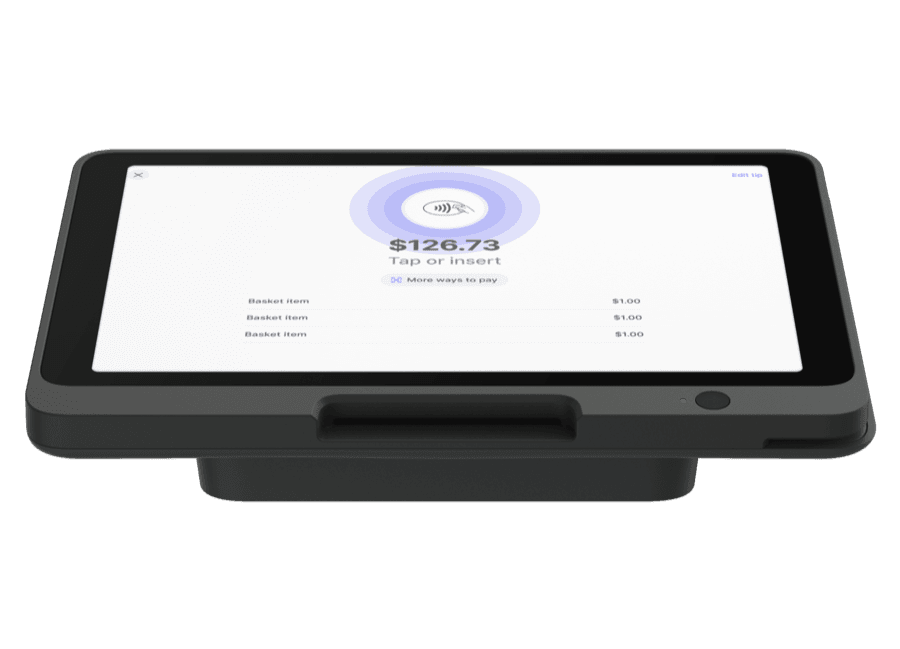
Stripe Reader T600
A larger, fixed reader for the counter.
- Type
- Countertop or pole-mounted, powered over USB-C
- Screen
- 8-inch customer-facing touchscreen
- Connects by
- Wi-Fi, or Ethernet with the optional hub
- Shows the sale
- Not confirmed by Stripe
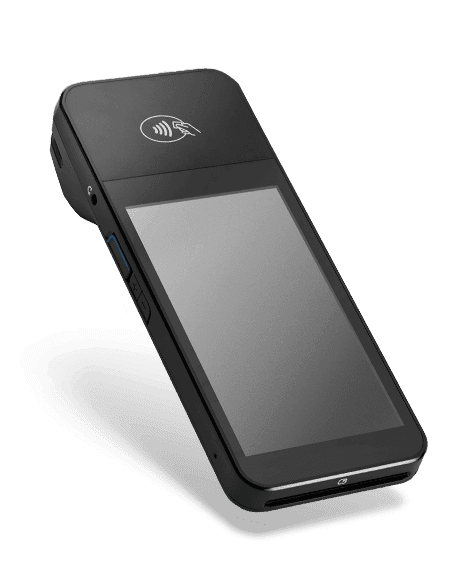
BBPOS WisePOS E
Stripe is phasing it out, but one you already own works with the register.
- Type
- Countertop, with a battery
- Screen
- Touchscreen
- Connects by
- Wi-Fi, or Ethernet with the dock
- Shows the sale
- Yes, items and total on the reader
Verifone readers
Stripe sells these through its sales team, and which models you can get depends on your country.
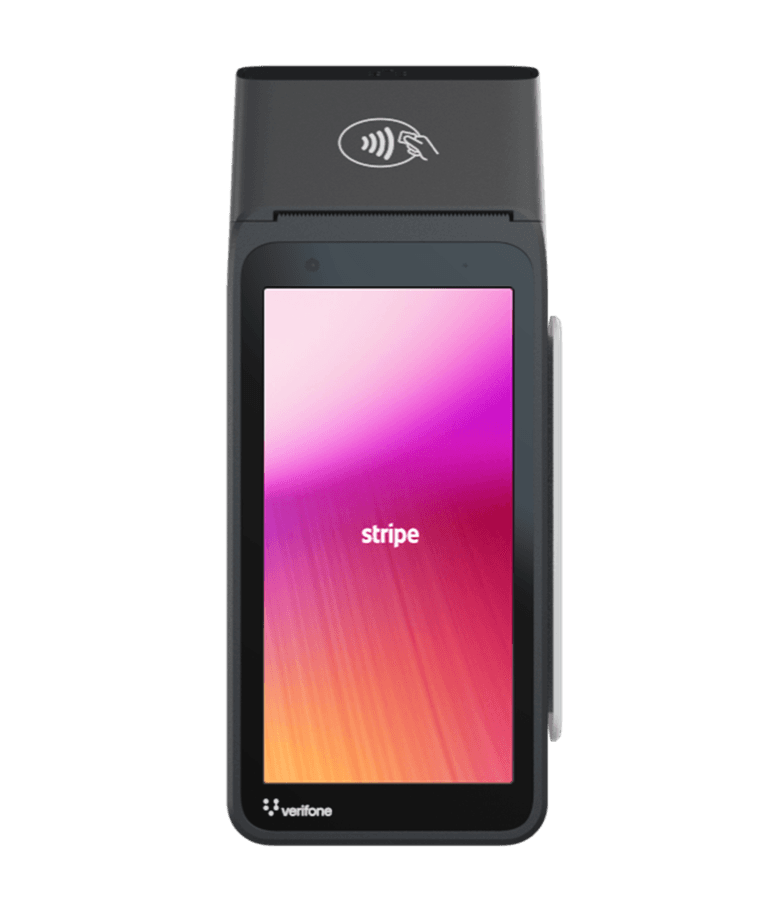
Verifone V660p
In previewA handheld Android reader.
- Type
- Handheld, with a battery
- Screen
- 5.5-inch touchscreen
- Connects by
- Wi-Fi, or Ethernet with the dock
- Shows the sale
- Not confirmed by Stripe
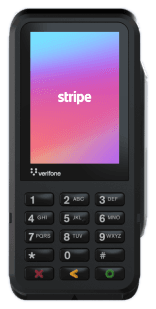
Verifone P630
A compact countertop PIN pad.
- Type
- Countertop
- Screen
- 3.5-inch touchscreen
- Connects by
- Wi-Fi, or Ethernet with an adapter
- Shows the sale
- Not confirmed by Stripe
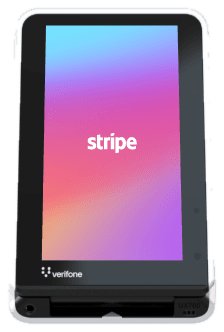
Verifone UX700
For unattended kiosks and self-service.
- Type
- Unattended, weatherproof
- Screen
- 5.5-inch touchscreen
- Connects by
- Wi-Fi or Ethernet
- Shows the sale
- Not confirmed by Stripe
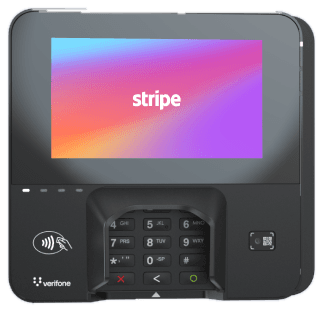
Verifone M425
In preview, US and Canada onlyA small countertop reader.
- Type
- Countertop
- Screen
- 3.5-inch touchscreen
- Connects by
- Wi-Fi, or Ethernet with an adapter
- Shows the sale
- Not confirmed by Stripe
Photos are Stripe’s own. Readers are ordered from Stripe, and not every reader is sold in every country. Check which readers Stripe sells where you are, compare Stripe’s readers, or see how to order one.
How a card payment works.
Your POS never connects to the card reader. Everything goes through Stripe: your site sends the sale up to Stripe, Stripe sends it down to the reader it set up for you, and the result comes back the same way.
Step 1 of 6
The cashier charges the card
The cashier chooses Card, picks the reader and presses Charge. Your site creates the payment with Stripe for the amount on the order, worked out on your server, never by the browser.
- The register shows
- Sending to the reader… One moment.
- Screen readers hear
- “Sending $52.50 to the card reader.”
Read all six steps
The cashier charges the card
The cashier chooses Card, picks the reader and presses Charge. Your site creates the payment with Stripe for the amount on the order, worked out on your server, never by the browser.
The register shows: Sending to the reader… One moment.
Screen readers hear: “Sending $52.50 to the card reader.”
Stripe sends it to the reader
Your site asks Stripe to send the payment to the reader. Stripe passes it down to the reader it set up for you. Your site never contacts the reader itself.
The register shows: Waiting for the card: $52.50. Ask the customer to tap, insert or swipe on Front counter.
Screen readers hear: “$52.50 sent to Front counter. Ask the customer to tap, insert or swipe.”
The customer pays on the reader
The customer taps, inserts or swipes, and enters a PIN if their card asks for one. These screens are Stripe's own, so card details stay inside the reader and Stripe.
The reader reports to Stripe
The reader sends the card to Stripe, and the customer's bank approves or declines it. An approval holds the money. Nothing is taken yet.
The register shows: Card read. Waiting for approval.
Screen readers hear: “Card read. Waiting for approval.”
Stripe tells your site
While it waits, your site checks with Stripe every second and a half. Stripe also sends a webhook as a backup, in case the register drops off the network mid-payment.
Your site checks, then takes the payment
Your site checks the amount, currency and order match before it captures the payment. If anything doesn't match, the payment is canceled. Then the order is marked paid.
The register shows: Payment complete. $52.50 paid by Visa •••• 4242
Screen readers hear: “Card approved. $52.50 paid. Sale complete.”
Before the payment
Turn on “Show the sale on the card reader’s screen” for a register, and readers with a customer screen show each item, the tax and the total as soon as the order is ready. It’s off until you turn it on, and checkout never waits for it.
When a card doesn’t go through
The register says what happened and what to do next, on screen and out loud, with a low falling tone if sounds are on. These are the exact messages.
- Declined
- “Card declined. Ask for another card or payment method.”
- Not enough money
- “Card declined: insufficient funds. Ask for another card or payment method.”
- Wrong PIN
- “Incorrect PIN. Ask the customer to try again.”
- Customer cancels
- “The customer cancelled on the reader.”
- Reader offline
- “The card reader is offline. Check that it is on and connected.”
- Reader timed out
- “The card reader timed out. Try again.”
- Bank unreachable
- “Bank not reachable. Try the card again.”
- No answer in 10 minutes
- “No answer from the card reader after 10 minutes. Check the reader, then check again or cancel.”
Readers that won’t work.
The register runs in the browser and reaches readers through Stripe, so readers that pair with a phone app can’t be used.
- Stripe Reader M2
- A Bluetooth reader that needs Stripe's mobile app SDK.
- BBPOS WisePad 3
- A Bluetooth reader that needs Stripe's mobile app SDK.
- Tap to Pay on iPhone and Android
- Needs a native mobile app.
Printers, drawers, scanners and devices
Receipt printers
Network thermal printers on Ethernet or Wi-Fi, with 80mm or 58mm paper. Tested with Star CloudPRNT printers. The printer collects receipts from your site securely, so nothing needs setting up on your local network. Without one, receipts print through the device’s own print dialog.
Star Micronics (Star CloudPRNT)
- mC-Print3
- TSP100IV
- TSP650II or TSP700II with an IFBD-HI01X or HI02X interface card
- mPOP
Epson (Server Direct Print)
- TM-m30II
- TM-m30III
- TM-T88VI
- TM-T88VII
- TM-m50
Cash drawers
A cash drawer connected to the receipt printer’s drawer port. It opens for cash sales, paid in, paid out, no sale and cash refunds.
Barcode scanners
A USB or Bluetooth scanner that types like a keyboard, as most do. The device’s camera works as a backup.
Tablets and computers
An iPad, Android tablet, or Windows or Mac computer with a current browser. The register installs like an app and needs a network connection.
Not sure what to buy? Ask us and we’ll help you choose the right setup for your counter.
Ring up a sale yourself.
The live demo is the real register, running in your browser with nothing to install. Turn on your screen reader and try a full sale.